




 Help Center
  Tutorials
  Download Center
 How to Download OnlyFans Videos to MP4 in 2026: 6 Best Ways
By Iris Holmes
Updated on Dec 27, 2025
26.6K views
6-min read
OnlyFans boasts a vast library of exclusive content, but it does not provide a built-in download option. So, what if you want to permanently save your favorite creators’ works for offline viewing? Can you download videos from OnlyFans to MP4 easily?
Don’t worry! In this guide, we’ll show you how to download OnlyFans videos as MP4 files in 6 methods, so you can watch them anytime, anywhere, without relying on an internet connection. Read on to pick the best fit for your needs!
⚠️Disclaimer: This guide is for personal, offline viewing purposes only. We always respect the intellectual property rights of content creators and comply with the platform’s terms of service and copyright laws.
- Method 1. Download OnlyFans to MP4 with Professional OnlyFans Downloader (Best Overall👍)
- Method 2. Save OnlyFans Videos as MP4 with Chrome Extension
- Method 3. Convert OnlyFans to MP4 with Online OnlyFans Downloader
- Method 4. Download OnlyFans Video to MP4 with Browser Inspect Element
- Method 5. Record OnlyFans Videos to MP4 with Screen Recorder
- Method 6. Transfer OnlyFans Video to MP4 with Android App
- Comparison of 6 Methods to Convert OnlyFans to MP4
- FAQs About OnlyFans to MP4 Downloads
- Conclusion
Method 1. Download OnlyFans to MP4 with Professional OnlyFans Downloader (Best Overall👍)
If you’re looking for a reliable and efficient way to download OnlyFans videos to MP4, the best option is to use a professional downloader, which ensures stable performance and higher success rates.
TuneFab VideOne OnlyFans Downloader is an excellent tool for this task. This tool applies advanced technology, letting you save any OnlyFans video in original quality, even DRM-protected ones. To do so, you only need a valid OnlyFans account to access and download the content. Moreover, there are no ads or malware, ensuring you have a clear and safe OnlyFans to MP4 conversion.
Key Features of TuneFab VideOne OnlyFans Downloader:
- High-Quality Downloads: Save videos in original quality up to 1080P.
- Multiple Format Support: Download OnlyFans videos in MP4, MKV, and MOV formats.
- Fast Download Speed: Enjoy 3X faster download speeds than traditional methods.
- DRM Removal: Download DRM-protected content easily, as long as you have access to the video.
- Batch Downloading: Download multiple videos at once.
- Customizable Output Settings: Choose your preferred video format, quality, and output folder.
- Various platform support: Also works as a powerful downloader for YouTube, TikTok, Netflix, etc.
Next, let’s move on and learn how to convert OnlyFans to MP4 on your computer by using TuneFab VideOne.
Step 1. Get TuneFab VideOne OnlyFans Downloader Ready
Download and install TuneFab VideOne OnlyFans Downloader on your Windows or Mac computer.
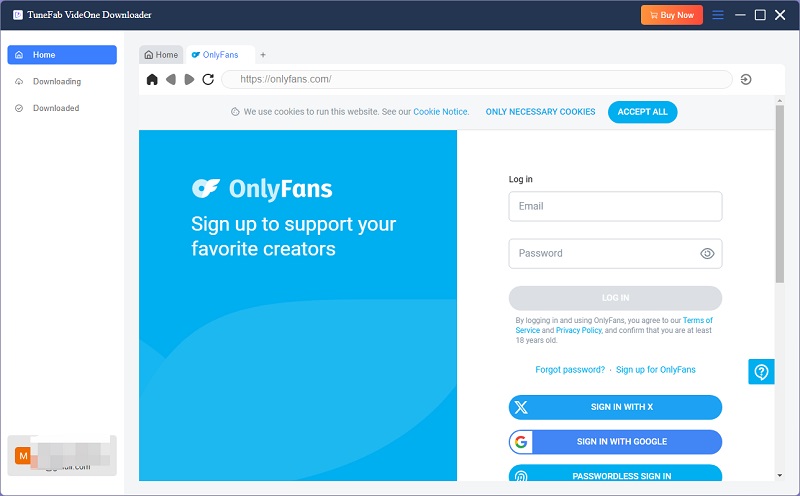
Step 2. Access the OnlyFans Website with the Built-in Browser
Launch the program, enter the OnlyFans service, and sign in with your OnlyFans account to access the video library.
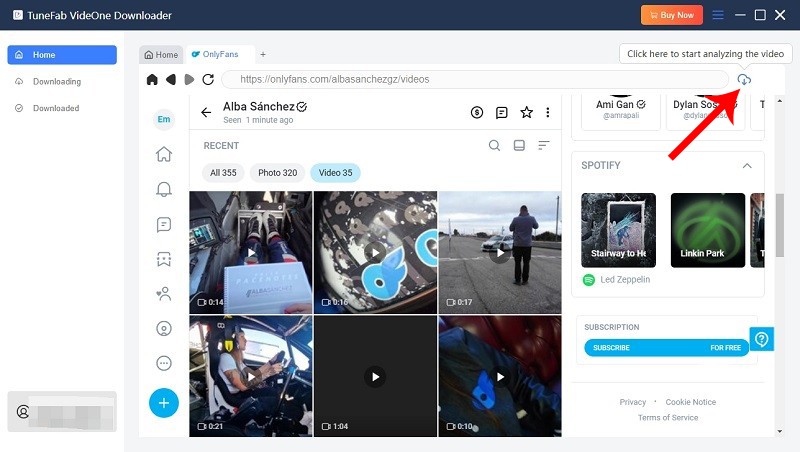
Step 3. Add OnlyFans Videos for MP4 Download
Search for or find the video you want to download from OnlyFans to MP4. Click on the download button at the bottom right.
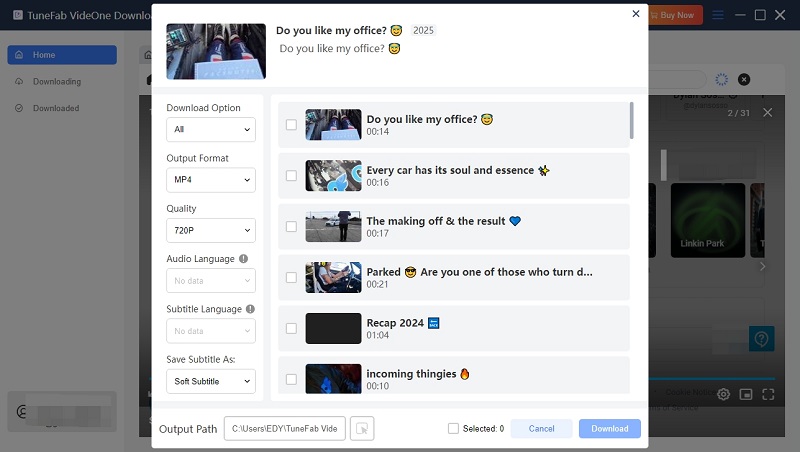
Step 4. Choose Output Settings
Select MP4 (by default) as your output format. You can also customize the quality (up to 1080P) and select the specific folder where you want to save OnlyFans videos offline.
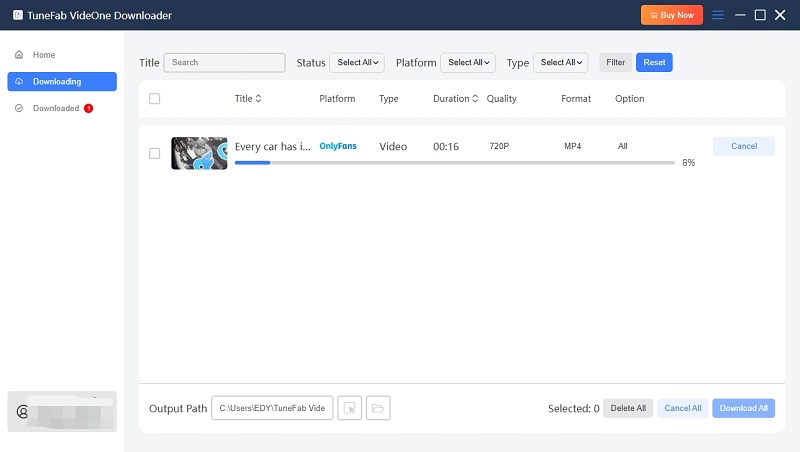
Step 5. Download OnlyFans Videos to MP4
Select the video and click the Download button to begin downloading. Once the process is complete, you can find OnlyFans MP4 downloads saved in the output folder you specified.
Pros:
- Download OnlyFans videos from messages, posts, collections, and more
- Supports high-quality downloads up to 1080p
- Multiple output formats (MP4, MKV, MOV)
- Fast download speed, up to 3x faster than traditional methods
- Can download DRM-protected content
- Batch download multiple videos at once
- Customizable output settings (folder, format, quality)
Cons:
- Requires software installation
- Needs a valid OnlyFans account to log in
Method 2. Save OnlyFans Videos as MP4 with Chrome Extension
For users who prefer not to install third-party software, using a Chrome extension like OnlyFans Downloader Chrome is an easy and convenient alternative. This extension allows you to directly download OnlyFans videos to MP4 format with minimal effort, directly through your browser. It’s especially helpful for those who want to quickly save videos without needing any additional applications.
Step 1. First, download the OnlyFans Downloader Chrome ZIP file and unzip it to a local folder on your computer.
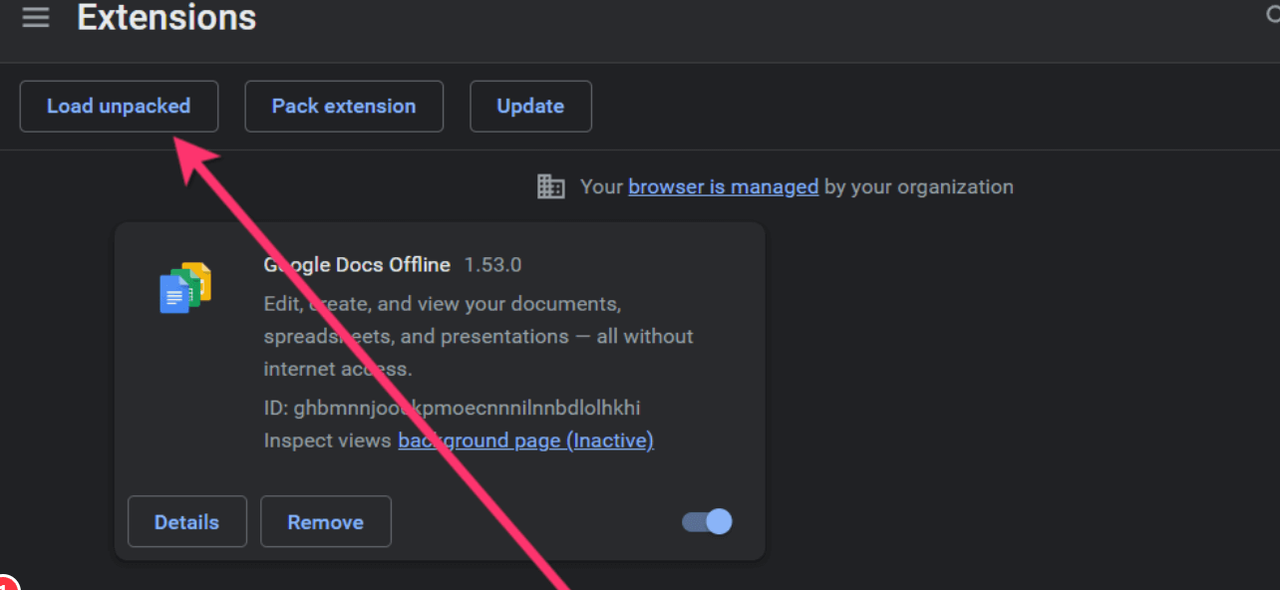
Step 2. Open your Chrome browser and go to chrome://extensions.
Step 3. On the Extensions page, toggle the switch to enable Developer Mode at the top-right corner of the page.
Step 4. Click on the Load Unpacked button and select the directory where you saved the OnlyFans Downloader ZIP file in Step 1. This will install the OnlyFans MP4 downloader extension on your browser.
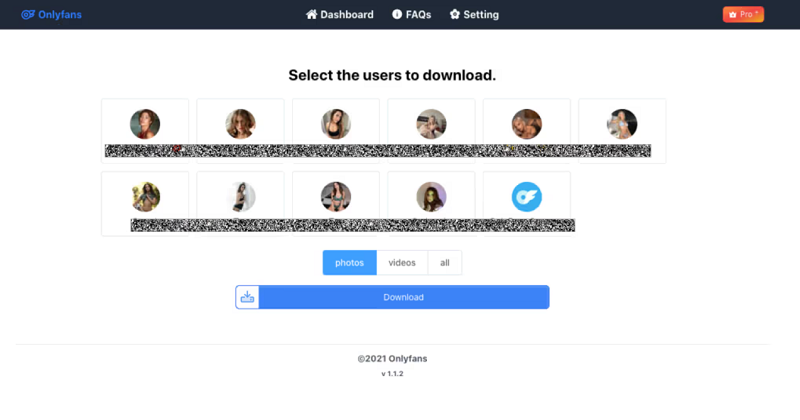
Step 5. Go to the OnlyFans website and click the extension icon in the browser toolbar. Then, a pop-up window will appear, automatically listing the detectable content categorized by creators on the current OnlyFans page.
Step 6. Select the video you want and click Download to save it as an MP4 file.
Pros:
- No desktop software needed; works directly in the browser
- Easy to use, download button appears on OnlyFans pages
- Supports OnlyFans MP4 downloads
Cons:
- Cannot always detect all OnlyFans videos
- Security risks; requires careful handling of browser permissions
- Video quality may be limited by browser streaming
- Requires manual ZIP installation and enabling Developer Mode
Further Reading: Top OnlyFans Video Downloader Extensions You Can Try
Method 3. Convert OnlyFans to MP4 with Online OnlyFans Downloader
If you prefer a hassle-free method that doesn’t require installing any third-party software, using an online OnlyFans to MP4 converter is a great option. Locoloader is a free online tool designed to help you download OnlyFans videos and save them as MP4 files. It also supports other platforms, including Fansly, Manyvids, TikTok, and YouTube, making it a versatile browser-based solution.
The tool allows you to select different video resolutions, such as 240p or 720p, to suit your storage capacity and viewing needs. Being browser-based, it provides a simple, plugin-free experience. Here is how to save OnlyFans videos to MP4 online.
Step 1. Go to the OnlyFans page where the video you want to download is located. Copy the URL of the video from the browser’s address bar.
Step 2. Visit Locoloader and paste the copied URL into the input bar on the website.
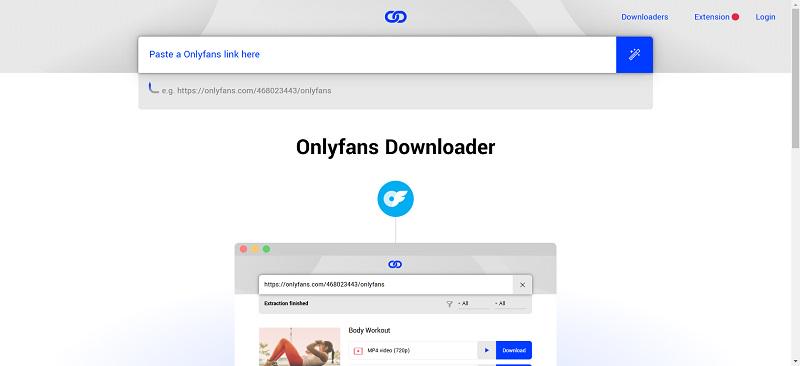
Step 3. Click on the magnifying glass icon, and wait for the website to analyze the video. This may take a few moments.
Step 4. Once the analysis is complete, you’ll see various download options. Select your preferred resolution, then click the download button to save the OnlyFans video in MP4 format.
Pros:
- No software or extension installation required
- Simple operation: just copy and paste the video URL
- Quick download for small or single videos
Cons:
- Download speed may be slow, depending on the server
- Privacy and account security risks
- Cannot download DRM-protected videos from OnlyFans
- No batch download support
- May stop working anytime due to OnlyFans DRM updates
Method 4. Download OnlyFans Video to MP4 with Browser Inspect Element
If you’re comfortable using browser developer tools, you can manually extract OnlyFans videos using the “Inspect Element” feature in Chrome, Firefox, or Edge. This method lets you locate the direct source link and download videos from OnlyFans to MP4. It’s a bit more technical but highly effective for non-encrypted content.
Before you begin, remember to play the video and adjust the resolution to your preferred quality in the bottom right corner of the video player. This will ensure you download the video at the desired resolution.
Step 1. Press Ctrl + Shift + I (on Windows) or Cmd + Option + I (on macOS) to open the Developer Tools in your browser.
Step 2. In the Developer Tools window, go to the Elements tab and search for MP4. Look for a URL that starts with “https://cdn2.onlyfans.com/files” and ends with “.mp4.” Right-click on that URL and select Open in new tab.
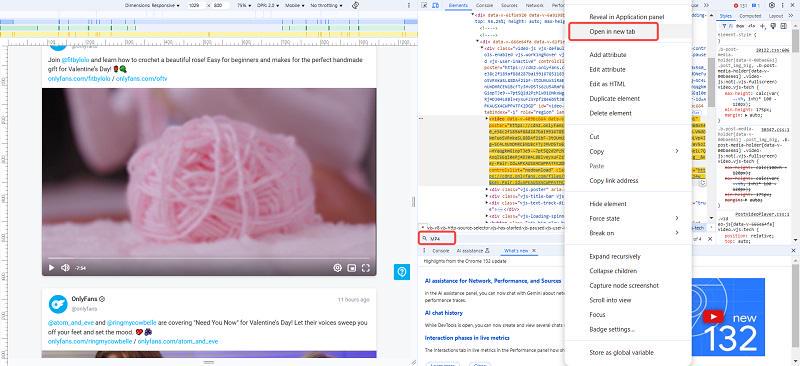
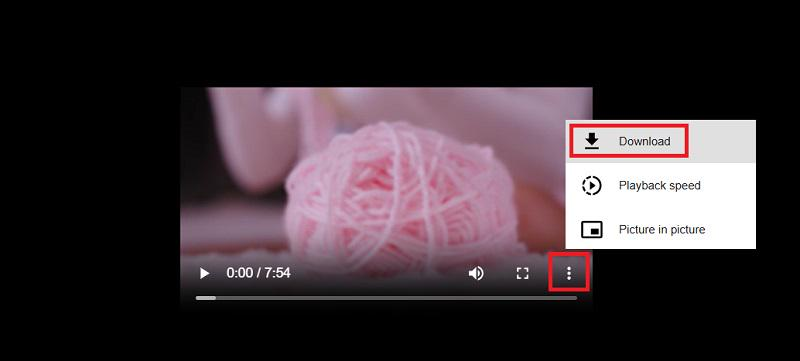
Step 3. Once the video opens in the new tab, click the three dots at the bottom right corner of the video and select Download. The video will be saved in your browser’s default download folder.
Pros:
- No extra tools needed, works directly in the browser
- Can access the original MP4 URL and download
- Flexible resolution adjustment
Cons:
- Requires technical knowledge, not beginner-friendly
- Download speed depends on the browser
- No batch download support
- May not work for all videos (DRM or protected videos cannot be downloaded)
Method 5. Record OnlyFans Videos to MP4 with Screen Recorder
When you want to grab a clip from an OnlyFans video or record a live stream while watching, screen recording is your go-to option. OBS Studio, an open-source screen recorder, is one of the most frequently recommended tools for the job.
With it, you can save OnlyFans videos as MP4 files for offline playback. Even better, OBS supports original video quality and 60 FPS recording, ensuring a clear and smooth viewing experience. Below is how to record and save OnlyFans to MP4 using OBS Studio:
Note: Due to OnlyFans’ strict Widevine DRM protection, you may encounter a black screen issue while recording. In such cases, it is recommended to use TuneFab VideOne, one of the best OnlyFans video downloaders, for a more stable and reliable download experience.
Step 1. Open the latest OBS Studio on your computer.
Step 2. Head to “File” > “Settings” > “Output”. Then, choose “MP4” in the “Recording Format”. Click “OK” to save your changes.
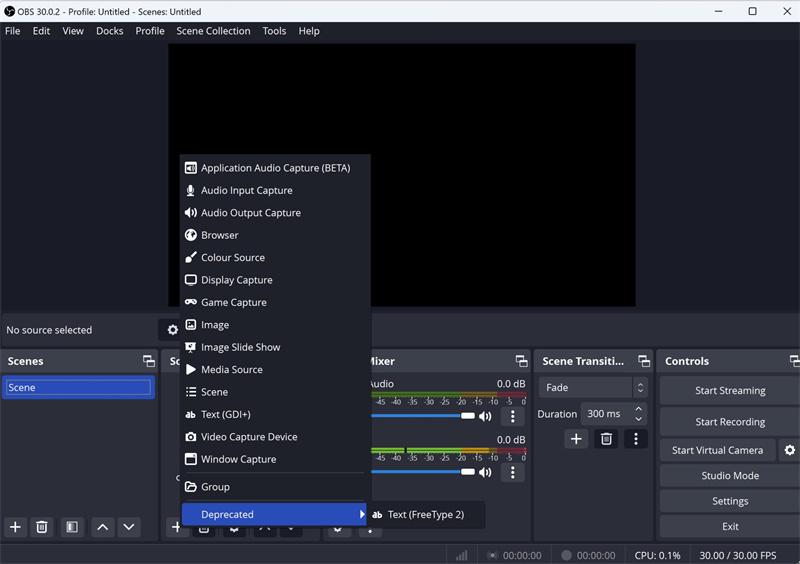
Step 3. In the main window, click “+” under “Sources” and choose “Window Capture”.
Step 4. Click “Start Recording” and play the video to start ripping the OnlyFans video.
Step 5. Click “Stop Recording” when the video ends. Then, you can easily get an OnlyFans MP4 download on your computer.
Pros
- Record OnlyFans videos to MP4 without a watermark
- Offer various customizable output options
- Support various output formats like MP4, MOV, FLV, or TS
Cons
- Present a less-intuitive interface for beginners to get started
- May encounter a black screen issue due to DRM protection
- Require real-time recording
- offer no support for batch download
Method 6. Transfer OnlyFans Video to MP4 with Android App
If you prefer to download OnlyFans videos directly onto your Android phone, AhaSave All Video Downloader is a safe option. The app is free to use for a wide variety of video platforms, including OnlyFans.
Spoilt for choice by its clean interface and simple controls, AhaSave lets you download videos from OnlyFans to MP4 with just a couple of taps. Though it will not bypass DRM or locked content, it is good enough to grab public or accessible videos while you sit on the couch. Here is how it works.
Step 1. Download AhaSave All Video Downloader and launch it.
Step 2. Open the OnlyFans video in your mobile browser and make sure you’re logged in.
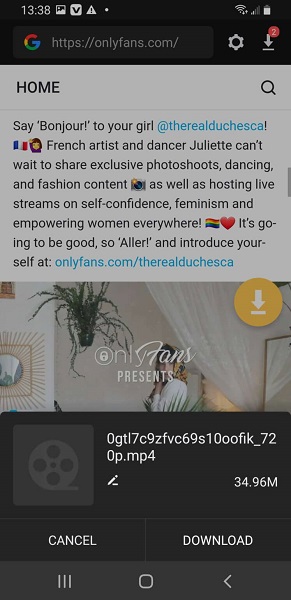
Step 3. Tap the Share icon in your browser and select AhaSave from the list of apps.
Step 4. Choose your desired resolution and tap Download. The video will be saved to your phone’s gallery in MP4 format.
Pros:
- Download directly on your Android phone
- Supports multiple video platforms
- Clean interface and easy operation for quick OnlyFans video download
Cons:
- Cannot download DRM-protected or restricted OnlyFans videos
- Video quality may be lower than the original 1080p
- Less comprehensive than desktop professional OnlyFans to MP4 downloaders
- Potential privacy and security risks
Comparison of 6 Methods to Convert OnlyFans to MP4
To help you choose the most suitable method for downloading OnlyFans videos to MP4, we’ve compared all five options based on key criteria such as platform compatibility, format support, video quality, speed, and safety. Here’s a quick overview:
| Method | Platform | Ease of Use | Batch Download | Format Support | Quality (Up to) | Download Speed | Safety Level | Best For |
|---|---|---|---|---|---|---|---|---|
| Professional Downloader | Windows/Mac | ⭐⭐⭐⭐ | ✅ Yes | MP4, MKV, MOV | 1080p | ⭐⭐⭐⭐ | ⭐⭐⭐⭐ | HD videos, DRM videos, batch tasks |
| Chrome Extension | Chrome Browser | ⭐⭐⭐ | ❌ No | MP4 | 720p–1080p | ⭐⭐ | ⭐⭐ | Quick use, no install |
| Online Downloader | Web-based | ⭐⭐ | ❌ No | MP4 | 720p | ⭐ | ⭐ | Casual or one-time use |
| Inspect Element | Computer Browser | ⭐⭐ | ❌ No | MP4 | 720p–1080p | ⭐ | ⭐⭐⭐ | Advanced users only |
| Screen Recorder | Windows/Mac/Linux | ⭐⭐ | ❌ No | MP4, MOV, FLV, or TS | 1080p (Source) | ⭐ | ⭐⭐⭐ | Clip from OnlyFans videos |
| AhaSave App | Android | ⭐⭐⭐ | ❌ No | MP4 | 1080p | ⭐⭐⭐ | ⭐⭐ | Android users on mobile |
Format Support: All methods primarily support the MP4 format. However, professional tools often offer more output options, such as MKV.
Download Quality: Professional downloaders typically support up to 1080p. Free tools usually rely on the browser’s streaming quality, which often maxes out at 720p or 1080p.
Speed: Download speed depends on the tool’s optimization and server capacity. Desktop software generally provides faster and more stable performance.
Safety Level: For security reasons, it’s best to use tools that don’t require entering your OnlyFans credentials. Third-party websites and browser extensions may carry privacy risks, so proceed with caution.
FAQs About OnlyFans to MP4 Downloads
Is it legal to download videos from OnlyFans to MP4?
If you have paid for the subscription and have the right to view the content, saving it for personal offline use is usually fine. That said, redistributing, uploading, or selling downloads is strictly prohibited and may result in serious copyright violations.
Can I download DRM-protected videos to MP4?
Only professional downloaders like TuneFab VideOne can handle DRM-protected content. Browser methods and mobile apps usually cannot.
Can I Transfer OnlyFans Video to MP4 on iPhone?
The online tool Locoloader can be used not only on a computer but also on mobile devices, including iPhone and Android, to download OnlyFans videos. Additionally, you can try the built-in recording feature.
Does OnlyFans Use MP4?
Yes. Videos on OnlyFans are typically streamed in MP4 format. Creators can upload videos in MP4, MOV, AVI, FLV, or WMV, but MP4 is by far the most commonly used.
Conclusion
In this article, we explored 6 methods to convert OnlyFans videos to MP4, including using browser extensions, online tools, the Inspect Element feature, a screen recorder, and the Android app. While these methods can be useful, they often come with limitations.
For a more hassle-free experience, we recommend using TuneFab VideOne OnlyFans Downloader. This tool offers 3X faster speed, original 1080P OnlyFans MP4 downloads, and support for DRM-protected videos. With it, you can easily save OnlyFans videos to MP4 and enjoy them offline with ease. Ready to get started? Try TuneFab VideOne for free today!